






Step 1
Pull photos from your phone, camera SD card, and any other source into one working folder on your Mac (something like ~/Pictures/Vacation-Italy-2026-RAW). Don't sort yet. Working from a single source folder makes every later step simpler.

Step 2
Run Gemini on the working folder to find duplicates. With 10,000 photos from multiple devices you'll have many: same shot AirDropped twice, iCloud syncs overlapping with camera imports. Review before deleting. Expect to cut 15-30% of the file count.
Step 3
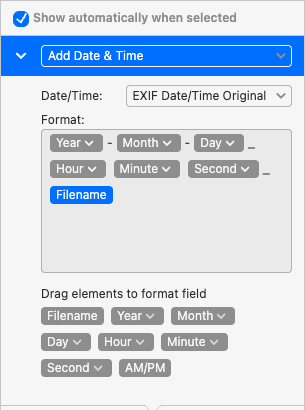
Drop the deduplicated folder into Renamer and add the "Add Date & Time" action. Set the Date/Time source to the EXIF capture date, then drag Year, Month, Day, Hour, Minute, and Filename into the Format field to build a pattern like
Step 4
Use Renamer's live preview to verify the pattern across a sample before committing. Click Apply. Once filenames start with a date, a Finder sort by name groups everything chronologically. Optionally create subfolders per city and drag date ranges in.
Step 5
Run CleanMyMac to clear leftover originals, temp folders, and the macOS Photos cache. A 10,000-photo vacation library can free 20-40 GB once duplicates and intermediate files are gone. Result: a sorted, searchable, backup-ready library.
Step 6
Step 7
Step 8
Step 9
Step 10



